How to Download YouTube Videos
Updated: 2025-01-15 · Estimated reading time: 5 minutes
Overview
Ever wanted to save a YouTube video to watch later when you’re offline? Maybe a tutorial you need to reference without internet, or a funny clip you want to share with friends who don’t have YouTube access. Whatever the reason, downloading YouTube videos doesn’t have to be complicated. With Download YouTube Videos, the process is straightforward and takes just a few clicks. Let me walk you through exactly how to do it, step by step.
Step 1: Copy the YouTube Video URL
First things first, you need the link to the YouTube video you want to download. Open up YouTube in your browser and find the video. Once you’re on the video page, look at the address bar at the top of your browser. That’s the URL. Just click on it to highlight it, then right-click and select "Copy" – or you can use the keyboard shortcut (Ctrl+C on Windows, Command+C on Mac). It should look something like https://www.youtube.com/watch?v=XXXXXXXXXXX.
Pro tip: You can also copy the URL from the "Share" button below the video. Click "Share," then "Copy" to get the link. Either way works fine!
Step 2: Paste the URL on Our Site
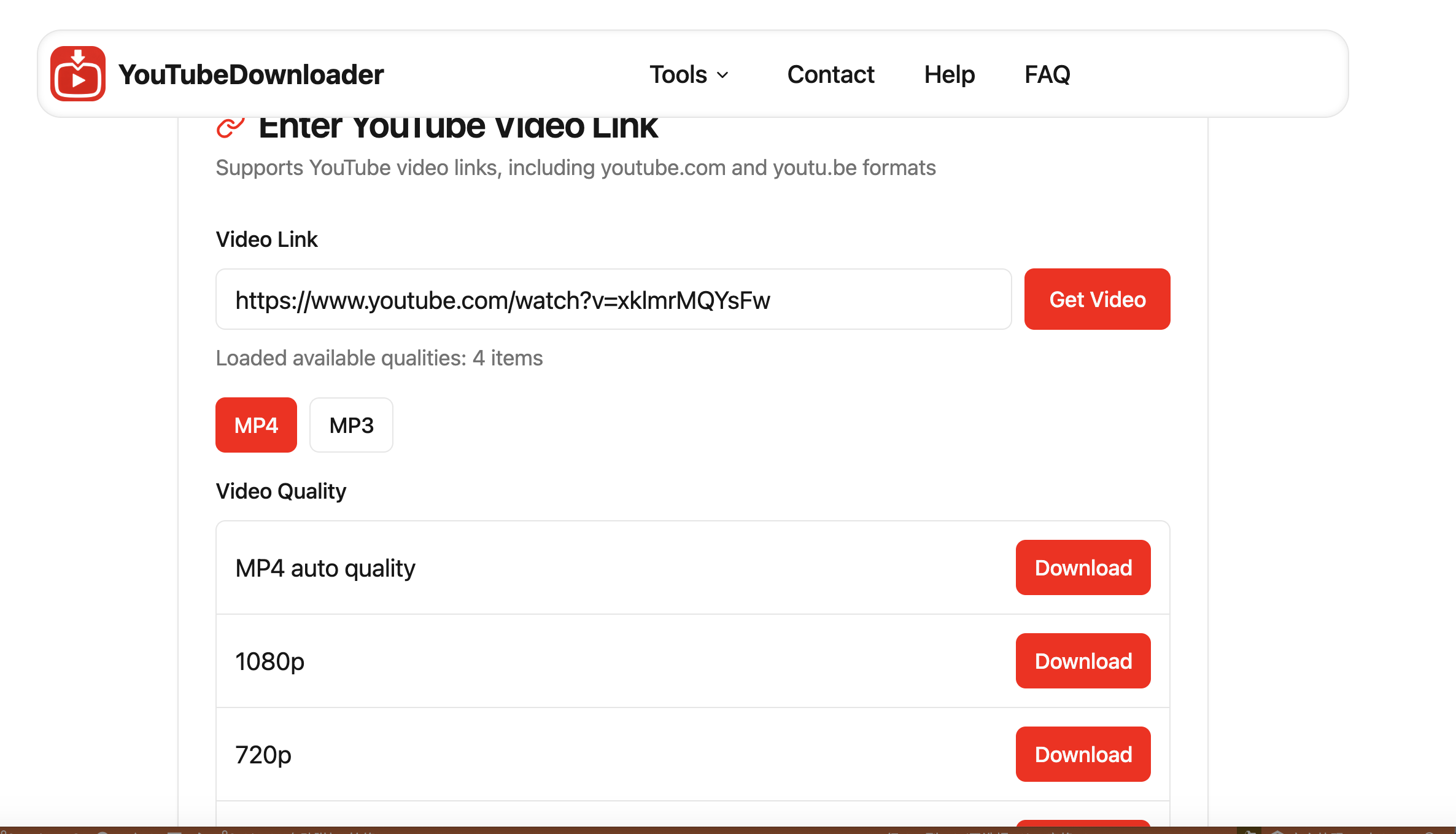
Now head over to https://youtube-downloader.top/. You’ll see a big input box on the homepage – that’s where you need to paste the URL you just copied. Right-click in the box and select "Paste" (or use Ctrl+V/Command+V). Make sure the entire URL is there – sometimes if you miss a character, it might not work, so double-check that it looks right.
The site is designed to be super simple, so you won’t have to hunt around for where to put the link. It’s front and center, so you can’t miss it.
Step 3: Click "Get Video"
Once your URL is pasted, look for the button that says "Get Video" right next to the input box. Click that, and our tool will start working its magic. It might take a few seconds – just enough time to grab all the info about the video, like the title, duration, and available formats. You’ll see a loading message while it’s processing, so don’t worry if it doesn’t happen instantly.
Why do we need this step? Well, YouTube videos come in all different qualities and formats, so we need to fetch that information to show you all your options. It’s quick, I promise!
Step 4: Choose Your Preferred Video Resolution
After a moment, you’ll see a list of available download options. This is where you pick how you want to download the video. You’ll see different resolutions like 1080p, 720p, 480p, and more, depending on what the video offers. Each option will also show you the file size, so you can choose based on how much space you have on your device.
Here’s my personal recommendation: go with "MP4 auto quality." This option automatically selects the best quality available that balances file size and download speed. It’s the most efficient choice for most people because it gives you a great-looking video without making you wait forever for it to download. Trust me, I’ve tested all the options, and this one is usually the sweet spot.
Of course, if you have a specific need – like wanting the highest possible quality (even if it’s a bigger file) or a smaller file for your phone – feel free to pick another option. They’re all labeled clearly, so you can’t go wrong.
Step 5: Click Download and Wait for It to Finish
Once you’ve picked your format, just click the "Download" button next to it. Your browser will start downloading the video right away. Depending on your internet speed and the size of the video, this might take a minute or two. You can usually see the progress in your browser’s downloads bar – it’s that little arrow at the top or bottom of the window, depending on which browser you use.
Once it’s done, the video will be saved to your computer or device’s downloads folder. From there, you can move it to wherever you want – your desktop, a specific folder, or even transfer it to your phone or tablet.
Pro Tips for Smooth Downloading
- Make sure you have a stable internet connection, especially for larger files. A spotty connection might cause the download to fail or take longer.
- If a download doesn’t start, try refreshing the page and going through the steps again. Sometimes a quick retry is all it takes.
- Remember that MP4 is the most widely compatible format, so it’s a safe bet if you plan to watch the video on different devices.
- Respect copyright laws! Only download videos that you have the right to save, like your own content or videos with a Creative Commons license.
- Our tool works on mobile too! Just open https://youtube-downloader.top/ in your phone’s browser and follow the same steps – perfect for saving videos to watch on the go.
References
- YouTube Terms of Service: https://www.youtube.com/t/terms
- Creative Commons Licensing Information: https://creativecommons.org/licenses/
- Our Platform Guide: https://youtube-downloader.top/articles/1000.html